
A work laptop left in a café, stolen from a car, or lost in a taxi—it happens more often than you think. When the hard drive isn't encrypted, anyone can remove it, plug it into another computer, and read your emails, contracts, and client files in minutes. A Windows password offers no protection in this case; it only prevents login, not access to the data itself.
This is precisely the problem that BitLocker on Windows 11 solves. This tool encrypts the entire disk so that the data remains unreadable without the correct key, even if someone physically removes the disk. For a small or medium-sized business in Trois-Rivières, the Mauricie region, or Quebec City that handles personal information, it's one of the most cost-effective protections to implement, and it's already included in Windows.
Quick answer: BitLocker is the encryption tool built into Windows 11 Pro and Enterprise. It makes the contents of a drive unreadable without the key, protecting your data in case of theft or loss. To enable it, go to Settings, Privacy and security, Device encryption, and then be sure to back up your recovery key.
1. What exactly is BitLocker?
BitLocker is the disk encryption technology developed by Microsoft and integrated directly into Windows. Instead of only protecting access to the user session, it encrypts all the data stored on the disk. In practice, everything written to the disk is scrambled in real time and only becomes readable again when the correct computer boots normally with its key.
BitLocker's strength lies in its reliance on a hardware security chip called a TPM, found in almost all modern computers. This chip securely stores the encryption key and verifies that the system hasn't been tampered with before unlocking the drive. For the user, everything is seamless: once activated, BitLocker works in the background without noticeably slowing down the computer.
- Encrypting the entire disk, not just certain files
- Works with the TPM chip to securely store the key
- Included at no extra cost in Windows 11 Professional and Enterprise
- Managed and deployed on a large scale in a corporate park
2. Why encrypt the hard drive of your work PCs?
The most obvious reason is theft or loss of hardware. An unencrypted laptop is an open door to your data: simply removing the hard drive completely bypasses the Windows password. With BitLocker enabled, the stolen drive reveals nothing, transforming a potentially serious incident into a simple loss of hardware that needs replacing.
Beyond preventing theft, encryption addresses an increasingly important requirement for Quebec businesses. Bill 25 mandates the adequate protection of personal information, and encryption is one of the recognized security measures for achieving this. An encrypted drive also reduces your disclosure obligations in the event of data loss, as the data remains inaccessible. If you want to build a comprehensive data protection strategy, our managed IT services cover the deployment of encryption across your entire network.
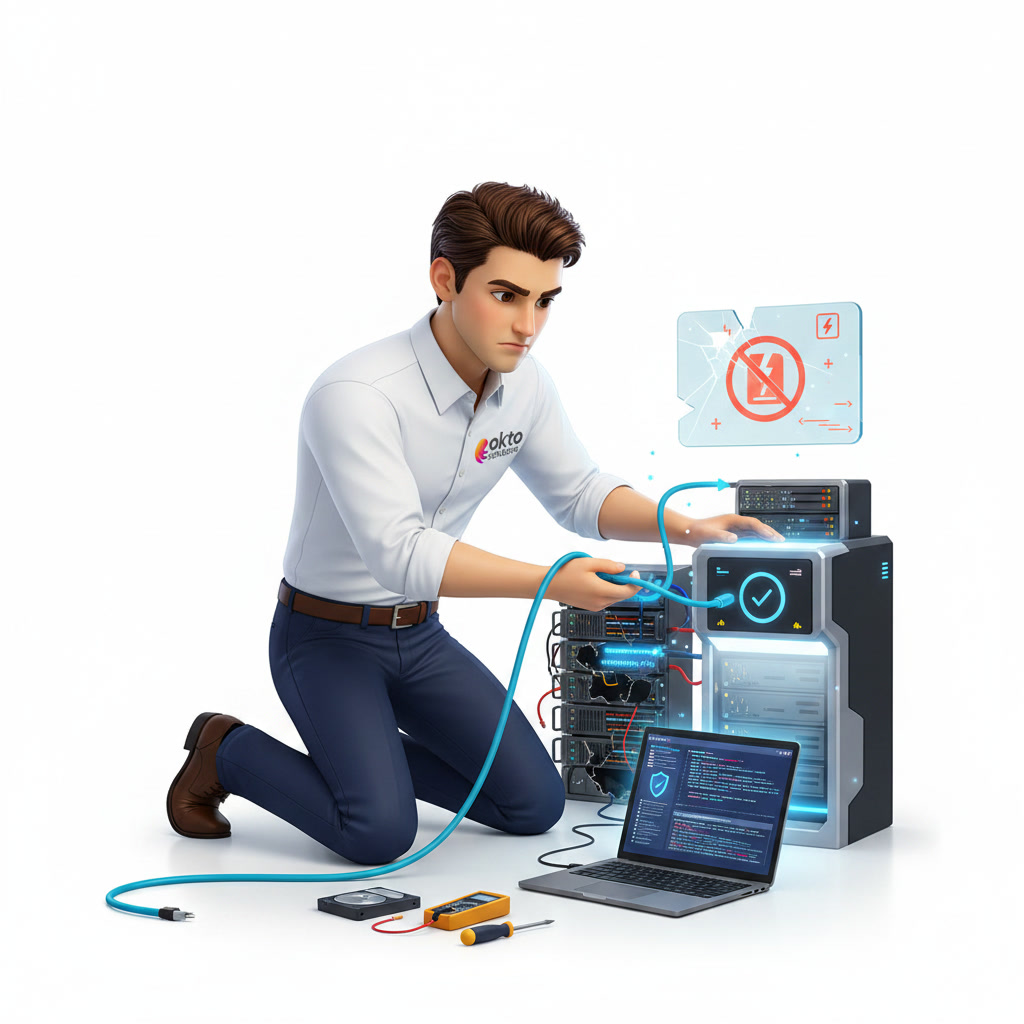
3. Check if your PC is compatible with BitLocker
Before enabling BitLocker, you need to confirm two things: your Windows edition and the presence of a TPM chip. Full BitLocker is offered on Windows 11 Professional, Enterprise, and Education editions. The Home edition offers a lighter version called Device Encryption, sufficient for personal use but more limited for enterprise management.
To check your edition, open Settings, then System, then About. To check the TPM chip, press the Windows key and the letter R at the same time, type tpm.msc , and press Enter. If the window indicates that the TPM is ready, you're good to go. Most computers sold in the last few years meet these requirements without any intervention.
- Windows 11 Professional, Enterprise, or Education edition for the full version
- A TPM 1.2 or 2.0 chip enabled in the BIOS or UEFI
- A properly configured system disk and boot space
4. How to enable BitLocker on Windows 11 step by step
Activation takes only a few minutes, but the initial disk encryption can take anywhere from several minutes to a few hours depending on the amount of data. You can continue working during this time. Here's the most direct procedure.
- Open the Start menu, type Manage BitLocker and open the corresponding result.
- Next to the system disk (often drive C), click on Enable BitLocker.
- Choose the backup method for your recovery key (we will come back to this in the next section).
- Select to encrypt the entire disk for a machine that has already been used, which is more secure.
- Keep the encryption mode recommended by Windows, then start the process and restart if prompted.
Once encryption is complete, BitLocker runs continuously and requires no further action on your daily tasks. The computer starts normally, and the protection remains active every time it is turned on.

5. Back up your recovery key, a crucial step
The recovery key is a long code that Windows generates during activation. It's your safety net: if the TPM chip detects a hardware change, a BIOS update, or an unusual boot process, BitLocker can request this key to unlock the drive. Without it, your data becomes permanently inaccessible, even to you.
Never store the recovery key solely on the computer it protects. Back it up in the user's Microsoft account, your Microsoft 365 company account, or a secure password manager. For an SMB, the ideal solution is to centralize these keys so that any computer can be troubleshooted quickly. This is typically the kind of process we implement when managing a fleet of computers, and our team can handle it if you contact us through our contact.
- Save the key to the user's Microsoft account or work account
- Keep a copy in a reliable password manager
- Centralize fleet keys for rapid troubleshooting on-site
- Avoid storing the key on the disk it is supposed to protect
6. BitLocker and Bill 25: Protecting Data in Quebec
For businesses in Trois-Rivières, the Mauricie region, and Quebec City, encryption is no longer a luxury, it's a necessity. Bill 25 mandates the implementation of reasonable security measures to protect the personal information you hold about your customers and employees. BitLocker aligns perfectly with this principle by rendering data unreadable in the event of a device being lost or stolen.
Encryption alone isn't enough to cover all your obligations, but it forms a solid foundation alongside two-factor authentication, backups, and access management. Deployed across all your workstations and well-documented, it demonstrates that your SME takes data protection seriously, which matters as much to your customers as it does for compliance.

Frequently Asked Questions
Is BitLocker slowing down my computer?
On a modern computer with a TPM chip, the impact on performance is minimal and imperceptible under normal use. Encryption and decryption are performed on the fly by the hardware. Only the initial disk encryption takes time, but you can continue working during this process.
What happens if I lose my BitLocker recovery key?
If BitLocker requests the recovery key and you've lost it, the data on the drive becomes inaccessible, without exception. That's why it's crucial to back up this key to a Microsoft account or password manager before you need it. Once the drive is locked, there's no way around it.
Is BitLocker available on Windows 11 Home?
The Home edition doesn't have full BitLocker, but offers a simplified version called Device Encryption on compatible computers. For enterprise management with centralized keys and large-scale deployment, you need Windows 11 Professional or Enterprise.
Secure your SME's data in Mauricie with OKTO Solutions
Activating BitLocker on a single workstation is simple, but deploying it correctly across an entire network, centralizing recovery keys, and integrating it into a Bill 25-compliant strategy requires a methodical approach. Our IT management services handle workstation encryption, data security, and support for your teams in Trois-Rivières, the Mauricie region, and Quebec City. For an assessment of your current level of protection, contact us through our contact , and we'll determine where to begin.