Why disable Windows 11 animations?
Windows 11 includes several visual effects that may slightly slow down your usage, especially on older or heavily used machines.
- Opening and closing animated windows
- Start Menu Animation
- Transitions between virtual desktops
- Visual effects on mouse hover
These effects improve the appearance but reduce performance. Disabling these animations results in a more direct and efficient interface.
Quick method to disable animations
Here's the easiest way to disable animations in Windows 11:
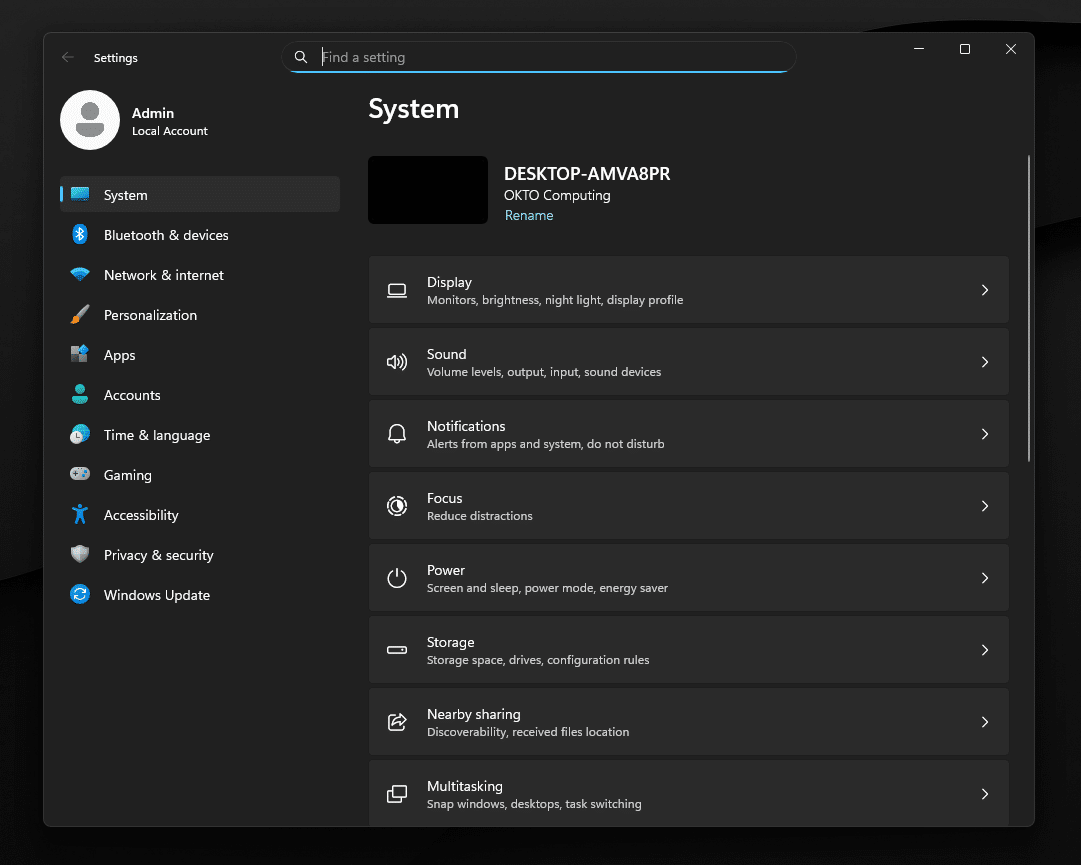
- Press Win + I
- Go to Accessibility
- Click on Visual Effects
- Disable Animation Effects
This option quickly stops the main animations and immediately improves system responsiveness.
Advanced method for optimizing performance
For more precise control, you can adjust the animations manually:
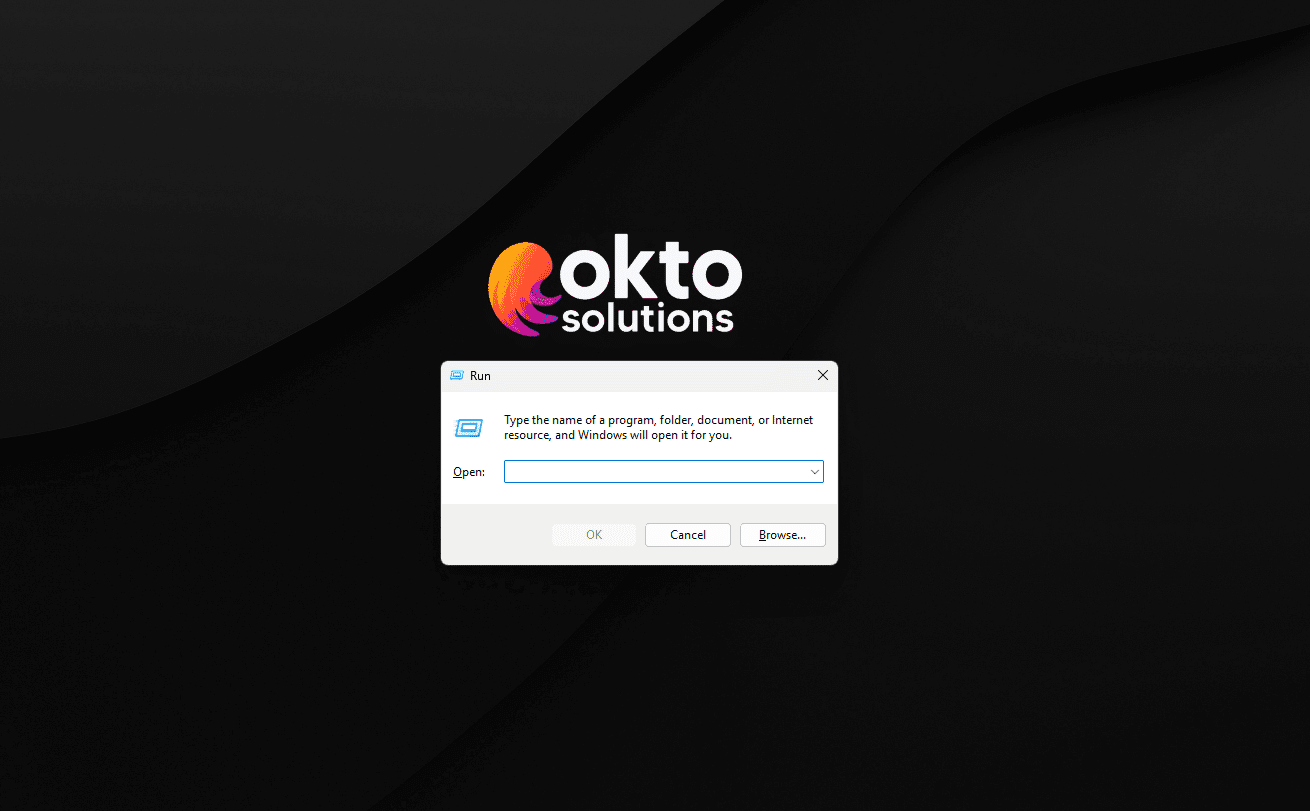
- Press Win + R
- Type sysdm.cpl
- Open Advanced system settings
- Click on Settings in the Performance section
- Disable unnecessary animations
You can choose to keep certain visual effects while improving overall speed.
Result after optimization
Once animations are disabled, Windows 11 becomes smoother:
- Applications open faster
- More responsive Start Menu
- More instant navigation
- Less visual latency
This optimization improves productivity without changing your work environment.