Claude "Trusted Devices": Locking Down Remote Control

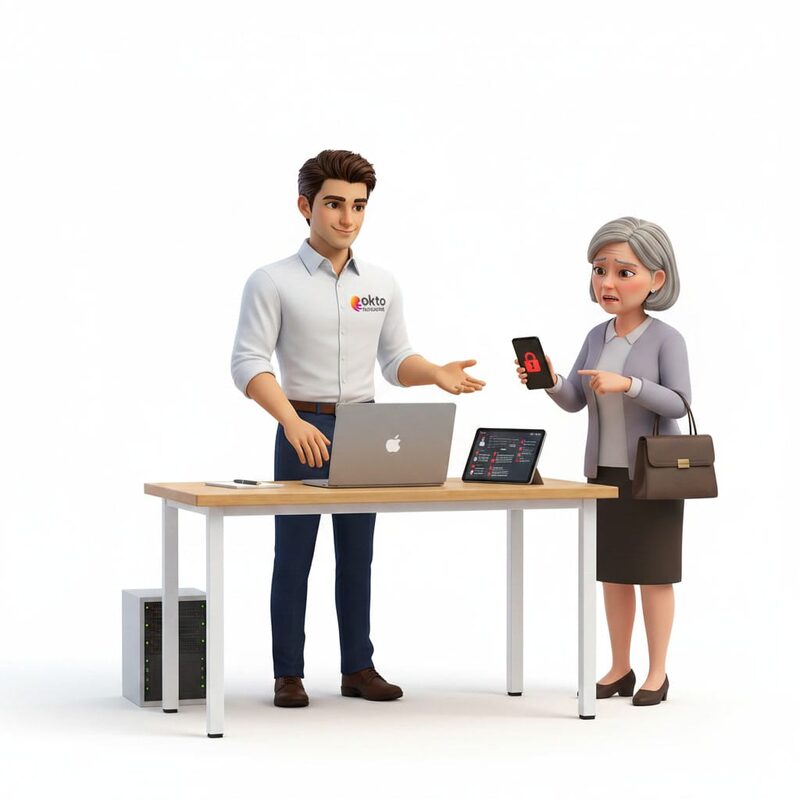
In late June 2026, Anthropic added a security option to Claude, its artificial intelligence assistant. It is called Trusted Devices, and it targets one specific feature: remote control of Claude Code sessions, the company’s own programming tool. The idea fits in one sentence. Before picking up a session on a phone, in a browser or on another machine, the user has to prove they are on a device that is already recognized and that they authenticated recently.
This might look like something only development teams need. The logic behind it, though, concerns any company that lets employees connect to sensitive tools from outside the office. Tying access to a known device, rather than to an account signed in somewhere, is exactly the reflex we recommend to Quebec businesses. Here is what Claude has introduced, and what you can take from it for your own fleet.
Quick answer: Anthropic added "trusted devices" to Claude Code. To drive a session remotely you now need an enrolled device and a sign-in less than 18 hours old, confirmed with Face ID, Touch ID, Windows Hello or a passkey. The principle, tying access to a known device rather than only to an account, is a solid security practice any business can apply.
1. What Claude just added
To understand the change, you first need to know what remote control of Claude Code is. According to Anthropic’s official documentation, the feature lets you start a work session on your computer, then pick it up from a phone, a tablet or a browser on another machine. The session keeps running locally, on your own workstation. The phone or browser is only a window onto that session.
Convenient, and it raises an obvious security question: who can open that window? Until now, being signed in to the right account was enough. Trusted devices add a second barrier. When an administrator turns the option on, a team member can only see or drive a session remotely if two conditions are met:
- Their device (each browser, phone or desktop app) has to be enrolled, meaning registered as a known device during a genuine sign-in.
- Their last sign-in has to be less than 18 hours old. Past that point, they confirm their presence with Face ID, Touch ID, Windows Hello or a passkey.
Put another way, a stolen username and password are no longer enough to pick up a session remotely. You also need physical possession of a device that is already recognized, and a recent biometric check. The feature is in beta for now and offered on the Team and Enterprise plans, switched off by default until an administrator turns it on.
2. How it works in practice
The flow is deliberately quiet for the user. The first time an employee wants to drive a session remotely from a new device, they are asked to enrol it. Enrolment is only offered right after a full sign-in, so a device never joins the trusted list in the background without the person noticing.
Day to day, if the device is enrolled and the sign-in is recent, the employee sees no extra prompt. When their sign-in passes 18 hours, they get a single biometric confirmation request. Anthropic makes an important point about privacy: the check happens on the device, through the operating system or the browser. The company never receives or stores any fingerprint or face data. Only the device’s public key and a few basic details (name, platform, enrolment date) are kept.
Management stays with the user and the administrator. Each member can review the list of their enrolled devices and revoke one in a few clicks, for example after losing a phone. On the administrator side, a "sign out everywhere" command cuts all of a member’s sessions and devices at once. An unused device also drops off the list on its own, because its credentials expire if they are not renewed.
3. Why this Claude news matters to a smaller business
You may not use Claude Code in your company. The principle, though, applies to nearly all your tools. The big weakness in a lot of remote access is that it rests only on a signed-in account: as long as somebody knows the password, they are in. That is precisely what phishing and credential theft exploit, two of the most common ways into a company’s data.
What Claude is putting in place here is the idea that access should be tied to a known device and a recent authentication, not only to an account. You find the same logic in the practices we deploy for our clients: two-factor authentication, passkeys, device compliance checks before a connection is allowed, and the ability to cut off a lost device remotely. If you want to build that kind of protection around your own tools, it is the heart of what we do in managed IT services.
Remote work makes the point even sharper. The moment an employee connects to your systems from home, a coffee shop or a personal phone, the account alone says very little about whether the connection is legitimate. The device says a great deal. A company the size of Anthropic is putting this protection on its own most sensitive feature. That is a good signal for you too.
4. What you can apply right away
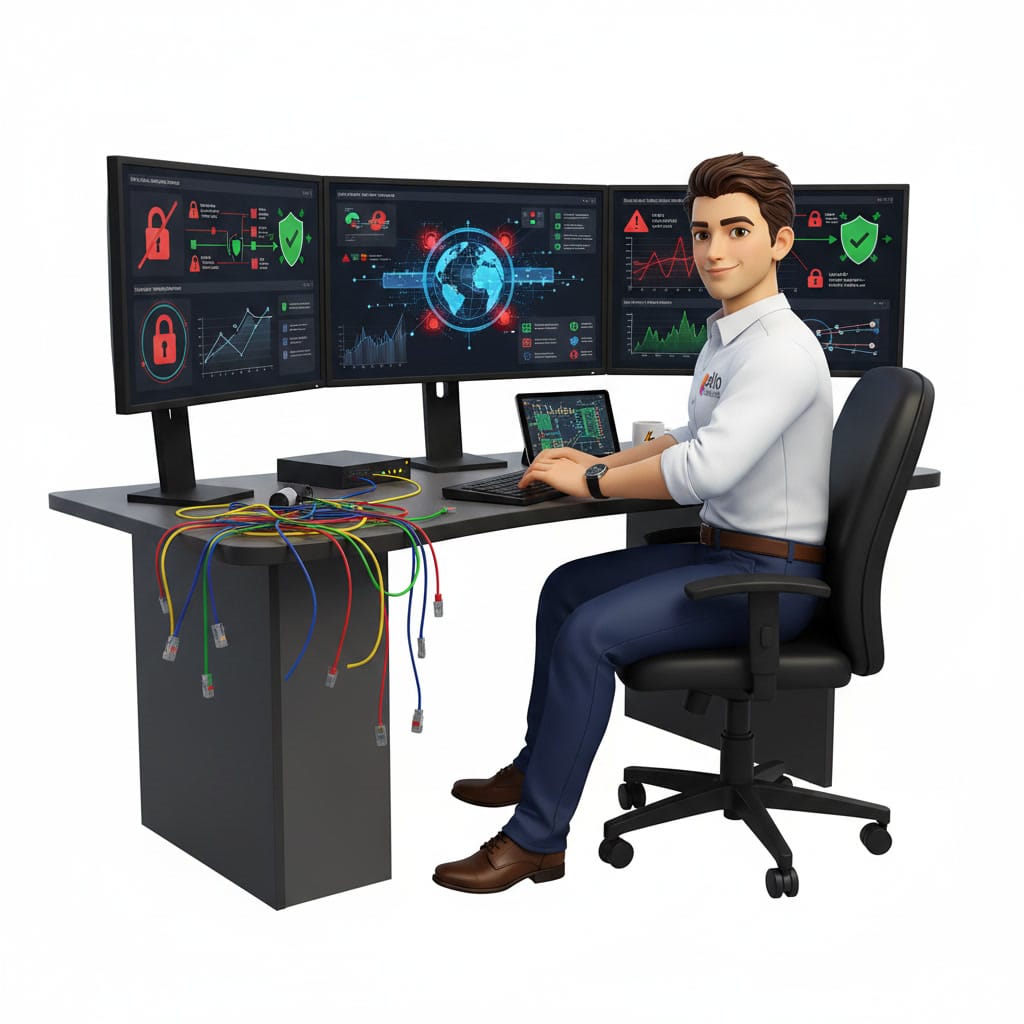
You do not need a specific tool to adopt this approach. Here are concrete measures, in the spirit of trusted devices, that most smaller businesses can put in place:
- Turn on two-factor authentication for your critical accounts, starting with Microsoft 365 and your remote access.
- Move to passkeys or biometrics wherever the tool allows it, rather than relying on a password alone.
- Restrict sensitive connections to managed, compliant devices (system up to date, encryption on, antivirus in place).
- Keep the list of authorized devices current and revoke a lost, stolen or departing employee’s device immediately.
- Set a sensible session length, so a forgotten sign-in does not stay valid indefinitely.
None of these measures calls for rebuilding your IT. Most rely on tools you already own, especially in the Microsoft 365 ecosystem. If you are not sure where to start or how to check what is already in place, a look from our team is usually enough to pinpoint the weak spots. You can reach us through our contact page to talk it over.
Frequently asked questions
What is Claude Code remote control?
It is a feature that lets you start a programming session with Claude on your computer, then pick it up from a phone, a tablet or a browser on another machine. The session keeps running locally, on the original workstation. The remote device only serves as a window to follow and steer it.
Are trusted devices available to everyone?
No. According to Anthropic, the feature is in beta and limited to the Team and Enterprise plans. It is off by default and an organization administrator has to turn it on. It affects only remote control: ordinary chat with Claude, terminal use and API key calls are not touched.
Can Anthropic see my biometric data?
No, according to the documentation. The check (Face ID, Touch ID, Windows Hello or a passkey) happens directly on the device, through the system or the browser. Anthropic stores only the device’s public key and basic details such as the name, the platform and the enrolment date. No fingerprint or face image is transmitted.
Protect your access, without the headache
The lesson from this change is simple: solid access does not rest on a password alone, it also rests on a known device and a recent verification. That is exactly the kind of protection we put in place for businesses in Trois-Rivières, the Mauricie and elsewhere in Quebec. To review your remote access and your security, take a look at our IT services for businesses or write to us through our contact page. We look at your situation and give you clear next steps.
Reading about AI is one thing. Connecting it to your own data is another: artificial intelligence in business, custom AI application development and our IT services in Quebec City.