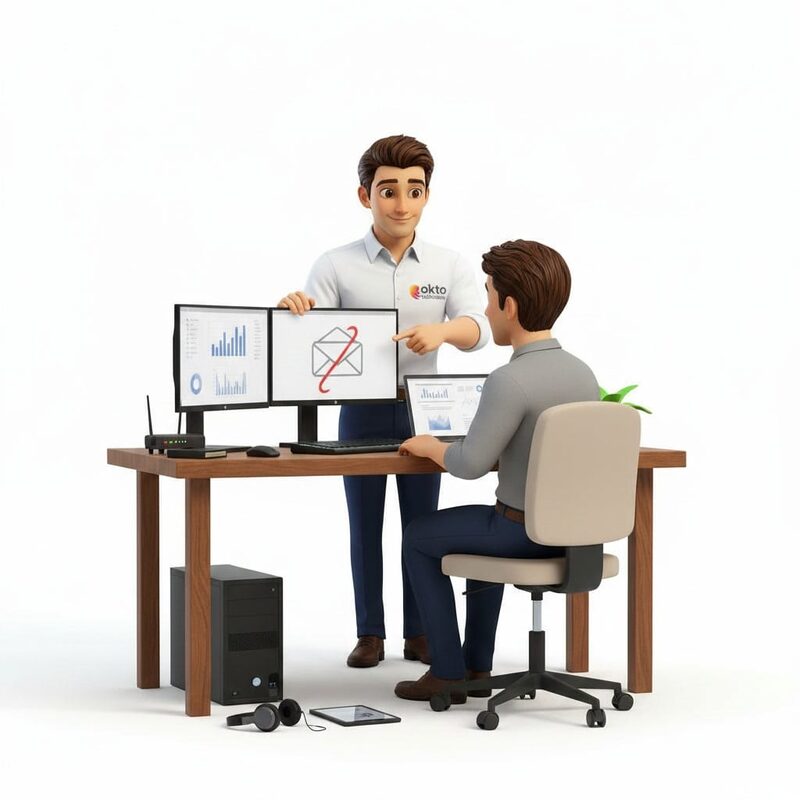
Setting up dual monitors on Windows 11: the simple guide

A second monitor is often the small adjustment that changes an entire workday. Instead of juggling windows, you keep your email on one side and your document on the other, without losing the thread. For plenty of small business teams in Trois-Rivières and the Mauricie, it is the fastest way to save time without spending a fortune.
The good news is that Windows 11 makes the job genuinely simple. Once the cable is plugged in, the system almost always recognizes the new display on its own. This guide walks through every step, from the connection to the fine-tuning, and helps you fix the small problems that come up most often.
Quick answer: Connect the second monitor to your computer (HDMI, DisplayPort or USB-C), then right click the desktop and choose Display settings. Click Detect if the monitor does not appear, then select Extend these displays to use both screens as one large desktop. Drag the rectangles to place the screens in the right order.
1. What do you need before you start?
Before plugging anything in, check three things. First, your computer needs a free video output. Most recent laptops and towers have several, but an older machine may be limited to a single port already used by the first monitor.
Next, you need the right cable. The most common connections today are:
- HDMI: the most widespread standard, found on nearly every recent monitor.
- DisplayPort: common on desktop monitors and graphics cards.
- USB-C: on many modern laptops, one cable can carry the image and sometimes charge the machine.
- VGA or DVI: older, still useful for reusing a monitor you already own.
If the ports on your computer and your monitor do not match, an adapter solves it (USB-C to HDMI, for instance). Just make sure the adapter supports the resolution you want, otherwise the image may end up blurry or choppy.
2. Connecting and detecting the second monitor
Run the cable between your computer and the new monitor, then switch the monitor on. In most cases, Windows 11 immediately shows an image on both surfaces. If nothing appears on the second screen, do not panic.
Right click an empty area of the desktop and choose Display settings. You will see one or more numbered rectangles representing your screens. Click the Detect button to force Windows to look for the missing device. Also check that the monitor is powered on and that you selected the right input source (HDMI 1, DisplayPort and so on) in the monitor’s own menu.
There is a handy shortcut for switching modes quickly: press Windows + P. A panel slides in from the right offering four options in one click.

3. Choosing the display mode that suits you
Windows 11 offers four ways to use two monitors. The right choice depends on your work:
- PC screen only: only the main screen shows the image, the second stays black.
- Duplicate: both screens show exactly the same thing. Ideal for a presentation or a training session.
- Extend: the two screens form one large desktop. This is the most useful option for productivity, since you can move windows from one to the other.
- Second screen only: handy when you dock a laptop to a large monitor and close the lid.
For most people looking to work more efficiently, Extend is the right call. You can select it in Display settings, under the drop-down list, or directly with Windows + P. If you manage several workstations in your company and want these settings standardized, a managed IT services partner can apply the same configuration across your entire fleet, so no employee has to bother with it.
4. Arranging and tuning your two monitors
Once Extend is on, you still need to tell Windows where your screens physically sit. In Display settings, drag the numbered rectangles so they mirror your actual desk: left monitor on the left, right monitor on the right. Otherwise your mouse will cross from one screen to the other on the wrong side, which is disorienting.
Then take a moment to fine-tune these settings:
- Main display: click the rectangle you want, then tick the box to make it the primary display. That one carries the taskbar and your icons.
- Resolution: leave the recommended value for a sharp image. Each screen can have its own resolution.
- Scaling: if text is too small on a larger monitor, adjust the magnification percentage for comfortable reading.
- Orientation: switch one screen to portrait if you read long documents or code all day.
Bonus tip: the Snap Layouts feature in Windows 11 lets you park windows into precise zones. Paired with two monitors, it genuinely turns your desk into an organized workspace.
5. Fixing the most common problems
Even with a system this simple, a few snags come up regularly. Here is how to clear them quickly.
The second monitor is not detected
Check the cable and the monitor’s input source first, then click Detect. If nothing changes, update your graphics card driver. Windows 11 often handles it through Windows Update, but a manual driver update clears many stubborn cases.
The image is blurry or badly framed
Go back into Display settings and restore the recommended resolution. A cheap adapter or a damaged cable can also be to blame: try a different cable before concluding the monitor is faulty.
The mouse crosses on the wrong side
This is almost always because the screen order does not match their real position. Drag the rectangles in the settings until the mouse movement feels natural.
Frequently asked questions
Can you connect two monitors to a laptop?
Yes, in the vast majority of cases. Use the HDMI or USB-C port on your laptop, and remember to pick the Extend mode. Some older laptops support only one external monitor at a time, so check the manufacturer’s specifications if you want to add two.
Do you need a special graphics card for two monitors?
No, most recent computers handle two monitors with no extra hardware. A dedicated graphics card becomes useful mainly if you are aiming for three screens or more, or if you do demanding graphics and video work.
Why does my second monitor stay black after startup?
Most often it is a matter of the wrong input source on the monitor or a cable that is not seated properly. Check both, then press Windows + P to make sure the mode is not set to PC screen only.
A well-configured workstation for your team in Trois-Rivières
A well set up second monitor is a small step that pays off in productivity, day after day. If your business wants to standardize the configuration across every workstation, update drivers safely or simply hand off these technical details, our team can take care of it. Have a look at our IT services for small business or get in touch for support suited to your company in the Mauricie and across Quebec.
Sources: Microsoft Support · Microsoft Learn · OKTO Solutions
This kind of task goes quickly when someone else takes care of it: our IT support, our managed IT services and our IT services in Trois-Rivieres.