How to Change the Location of the Windows Downloads Folder

Windows Downloads folder: move it to another drive in three simple steps, and free up disk space. A guide by OKTO Solutions in Trois-Rivières.
Changing the location of the Windows Downloads folder
To move the Windows Downloads folder, open File Explorer, right-click Downloads, choose Properties, open the Location tab and click Move. Pick a folder on another drive, confirm, and Windows offers to transfer the existing files. Every new download then lands in the new spot.
Moving the Downloads folder frees up space on your system drive and helps your computer stay quick. By default, Windows saves every downloaded file on the main drive, which fills up your storage faster than you would expect.
Sending that folder to another drive is a simple way to manage your files better and avoid slowdowns.

Why move the Downloads folder
The steps in detail
Over time, the Downloads folder can grow very large and slow your system down.
- Free up space on the main drive
- Improve Windows performance
- Organize your files better
- Put a second drive or an SSD to work
This is especially worthwhile on work computers or on machines with little free space.
Steps to change the location of the Downloads folder
Here is how to change the location of the Downloads folder in Windows 10 and Windows 11:
- Press Win + E to open File Explorer
- Right-click Downloads
- Select Properties
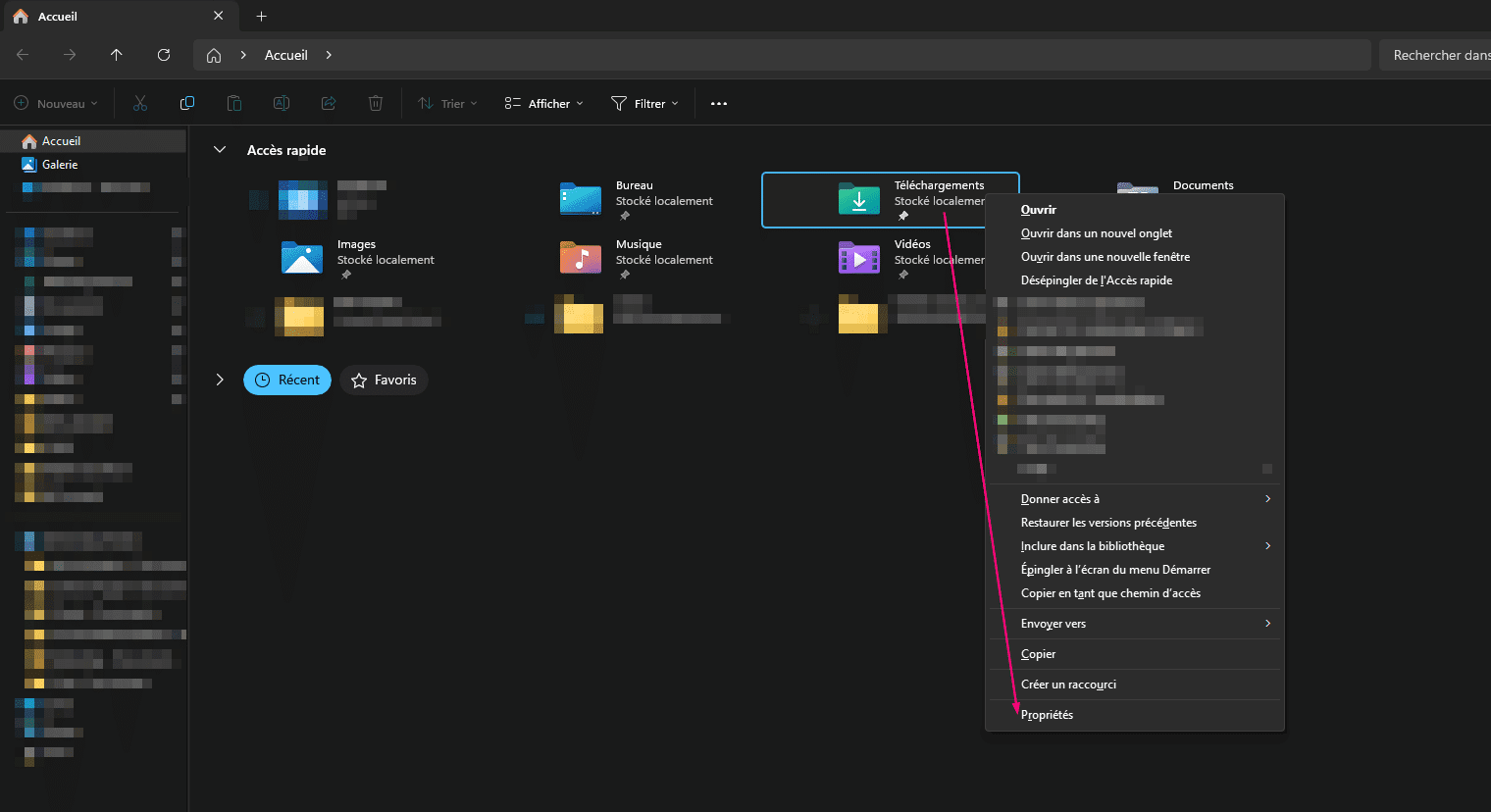
Moving the folder to another drive
- Go to the Location tab
- Click Move
- Select a new folder or drive
- Click Select Folder
- Then click OK
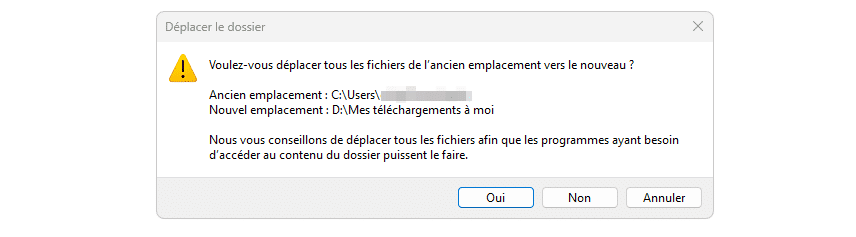
Windows will offer to move the existing files to the new location.
Confirming the file transfer
Click Yes to move every existing file to the new location. How long the transfer takes depends on the size of your Downloads folder.
Once it is done, all your new files will be saved automatically in that new location.
Restoring the Downloads folder to its default
If you want to go back to the original location:
- Return to Properties
- Open the Location tab
- Click Restore Default
- Confirm with OK
The folder goes back to where it started on the main drive.
On one workstation it is simple. On thirty, it takes a method: our managed IT services, our IT support and our IT services in Longueuil.